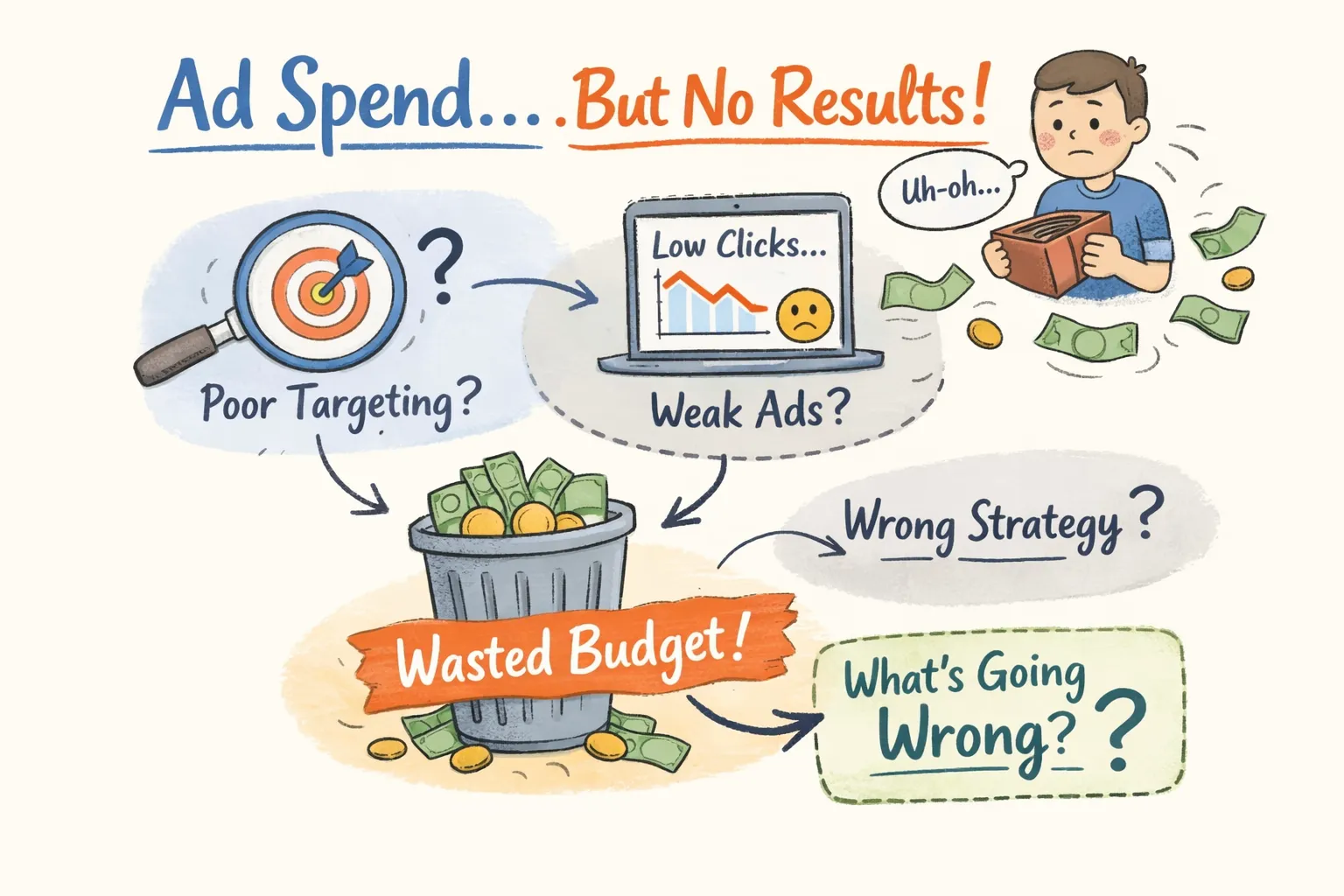
Your campaign is running. The budget is draining every day. And your conversions report is a flat line. You know something is wrong, but nothing in the interface points to a single obvious cause.
If you're asking why your Google Ads are spending without results, you're not alone, this is one of the most common and frustrating situations in paid search. The problem rarely traces back to a single broken setting. Most accounts dealing with this issue have multiple overlapping problems firing at the same time: a tracking tag that stopped firing after a site update, a bidding strategy optimizing toward the wrong action, and a landing page that doesn't match what the ad promised. Each issue alone would limit performance. Together, they make results invisible and turn ad spend into a flat-line conversion report.
Before working through each diagnostic area manually, running a CheckMyAds audit gives you a prioritized breakdown of what's actually broken, so you're not guessing where to start. The audit scans your entire account in minutes and surfaces issues across tracking, bidding, targeting, and account health in a single exportable report. Understanding the five diagnostic categories below is what turns that list of fixes into real, lasting improvement.
Why is my Google Ads spending without results? Start with broken conversion tracking
Internal CheckMyAds audit data consistently finds that more than half of lead generation accounts have misconfigured conversion tracking, and in several audit samples, the figure runs even higher. The alarming part is that campaigns keep spending normally even when tracking has completely stopped recording. You see clicks, you see costs, and the interface gives no warning that the data feeding your decisions is empty.
Are hidden account issues quietly draining your budget?
CheckMyAds surfaces the exact keywords, components, and cost drivers behind waste so you know what to fix first.
Request Free AuditWebsite updates, theme changes, and Google Tag Manager edits break conversion tags without triggering any alert. The tag that was firing correctly last month may have stopped when a developer pushed a new version of the site. To validate it, use Google Tag Assistant and confirm the tag fires on the confirmation or thank-you page, not on the landing page itself. That distinction matters: a tag on the landing page records visits, not completions.
Tracking the wrong actions creates a subtler version of the same problem. Accounts that count page views, scroll depth, or "get directions" as conversions feed Smart Bidding flawed signals, and the algorithm optimizes toward those junk metrics. One audit found 15 active conversion actions on a $12K/month account producing only 8 actual leads. The fix is straightforward: navigate to Tools, then Measurement, then Conversions, and disable any active conversion action that isn't a direct business outcome, a form submission, a phone call, or a purchase.
New campaigns with zero conversion history face an additional problem. Launching Maximize Conversions with no prior data puts Smart Bidding in an impossible position. Google's own guidance recommends at least 30 conversions in the last 30 days before Smart Bidding can exit its learning phase and bid effectively. Without that history, switch to Manual CPC temporarily, build up real conversion data, then migrate to an automated strategy once the signal is there.
Bidding strategies that drain budget while optimizing for the wrong outcomes
Once tracking is confirmed, the next diagnostic layer is the bidding strategy itself. A misaligned strategy burns through budget efficiently while producing nothing useful, and the campaign report will look like it's "working" because clicks are happening. This is a classic case of Google Ads not converting despite healthy activity metrics.
Smart Bidding's learning phase is a normal part of launching or changing a campaign, but campaigns that never exit learning become expensive experiments. The phase stalls when conversion volume is too low, when conversion actions are changed mid-flight, or when budgets are adjusted too frequently. Check the Bid Strategy Report under Tools and look for the learning phase indicator. If a campaign has been in learning for more than a few weeks, something upstream is blocking the signal it needs.
Maximize Clicks is a specific risk for accounts expecting leads or sales. It has one objective: get as many clicks as cheaply as possible, with no regard for whether those clicks convert. Despite that limitation, it's a common default for new campaigns. If your account is running Maximize Clicks on a lead gen or e-commerce campaign, that's the problem, not a symptom. Switching to Maximize Conversions (once tracking is clean) or Manual CPC with bid adjustments will immediately change what the algorithm is optimizing toward.
Budget pacing adds another layer of complexity. Google can overspend daily budgets by up to 20% on high-traffic days. For accounts with tight margins, this produces unexpected spend that doesn't correlate to better results. Check budget pacing under Campaigns, then Budgets, and segment spend by hour to identify whether your budget exhausts early in the day, before the traffic that actually converts ever appears.
Irrelevant search terms letting the wrong audience consume your budget
Even with clean tracking and a sensible bidding strategy, campaigns can bleed budget on searches that will never convert. The Search Terms report is the clearest place to see what's actually triggering your ads, and most accounts that haven't reviewed it recently will find surprises. This is one of the top reasons advertisers deal with ad spend and no conversions, the wrong audience is clicking.
Broad match keywords and Performance Max campaigns frequently trigger ads on loosely related queries with no buying intent. The fix has two parts: identify high-spend, zero-conversion search terms in the report, and build a negative keyword list from them. A specific waste pattern worth catching is brand terms appearing in non-brand campaigns. When brand exclusions aren't in place, your non-brand campaign spends budget on users already searching for you by name, inflating click volume without generating incremental conversions.
Keywords labeled "low search volume" are inactive by definition. They sit in the account, they look like active targeting, but they don't trigger ads. These often appear in over-segmented ad groups or when targeting extremely specific long-tail phrases with minimal historical query volume. Auditing keyword status and removing or consolidating these terms cleans up the account structure and removes false confidence that coverage is in place.
Location, schedule, and device targeting create invisible leaks that don't appear in headline metrics. Ads running during off-hours, in locations outside the actual service area, or on devices with consistently poor conversion rates drain budget without generating leads. Use segment reporting in Google Ads broken down by location, hour of day, and device to identify these patterns. Once found, apply bid adjustments or exclusions to redirect spend toward the segments that actually convert.
Landing pages receiving clicks but failing to convert them
The ad gets clicked, the session lands on the page, and nothing happens. At this point, the problem is no longer the campaign, it's the page. The fix lives outside the Google Ads interface, which is why many advertisers overlook it entirely when diagnosing why Google Ads is burning budget without results.
Message match and offer continuity
Message match is the first thing to check. If the ad headline says "free consultation" but the landing page opens on a generic homepage, the user feels misled and leaves immediately. The core offer in the ad copy must be reflected in the headline, the CTA, and the supporting text on the landing page. This isn't about design, it's about continuity of intent from click to conversion action.
Page speed and mobile experience
Page speed is a measurable conversion killer. Per Google's mobile speed research, pages loading above 3 seconds see conversion rates drop to roughly a third of what a 1-second load achieves, and bounce probability jumps to 32% at the 3-second mark compared to a 1-second baseline. Test with Google PageSpeed Insights and address image compression, script loading order, and layout shifts. Mobile users make up the majority of paid search traffic, and buttons that are too small, forms with too many fields, and layouts requiring horizontal scrolling destroy conversion rates that would otherwise be achievable. For details on the mobile speed threshold and its revenue impact, see the 3-second threshold of page load speed.
Attribution gaps create a specific type of confusion: the landing page works, but the tracking tag doesn't fire on form submit. The campaign appears to have zero conversions when conversions are actually happening. Use Microsoft Clarity alongside Google Analytics and Tag Assistant to verify that the conversion tag fires when a user completes the target action, not just when the page loads. This check takes 15 minutes and resolves one of the most common tracking errors in active accounts.
Account-level issues that block performance before campaigns get a chance
These are the easiest issues to fix and among the most overlooked. When advertisers see poor performance, they go straight to campaign settings. Account-wide problems can quietly shut everything down while that investigation continues.
A declined payment or an expired card stops all serving immediately, with no performance alert in the campaign view. You can spend hours optimizing bids and keywords while the account is completely paused due to a billing failure. Navigate to Billing, then Summary and Transactions, and confirm the most recent payment processed. Look for any "Account suspended" or "Payment required" flag in the Overview tab, the whole check takes 60 seconds.
Policy violations and ad disapprovals create performance patterns that are genuinely confusing. A single disapproved ad in a key ad group reduces reach significantly without triggering obvious signals at the campaign level. Accounts under policy review enter a state where serving is restricted but spend may still occur on compliant ads. Check the Policy Manager under Tools, then Troubleshooting, and scan all active campaigns for disapproved ads, limited serving notices, or pending reviews. The most common violations include misleading ad copy, restricted content categories, and destination issues like broken landing page URLs.
How to verify your fixes are actually working
Fixing the issues identified above is half the job. Without confirmation that each fix is producing measurable improvement, it's easy to mistake a coincidental traffic dip for ongoing failure, or to assume the problem is solved when it isn't.
For tracking fixes, conversions should appear in the interface within 24 to 48 hours after re-implementing the tag. Cross-reference against your CRM or analytics data to confirm the numbers align. For bidding changes, Smart Bidding needs at least two full weeks to exit learning after a major adjustment. Set a review date, resist the urge to make additional changes during that window, and evaluate performance against the two weeks before the fix.
For landing page and targeting fixes, measure conversion rate before and after the change using date range comparisons in Google Ads reports. You need a minimum of 100 post-fix sessions to draw any reliable conclusions. If accumulating that sample takes time, that's expected, making additional changes before reaching that threshold just adds noise to the data.
If spend is still happening with no conversions after all five diagnostic areas have been addressed, the problem is likely structural rather than a single misconfiguration. A full CheckMyAds scan surfaces issues that manual checks often miss because they require cross-referencing multiple data points at once. Use it as a Google Ads audit checklist replacement: it identifies what's broken, ranks issues by impact, and tells you exactly where to start, so you stop spending hours in the interface guessing what to try next.
The diagnostic order matters as much as the fixes themselves
Why are your Google Ads spending without results? The answer is almost always multi-layered. Broken tracking, misaligned bidding, irrelevant search terms, poor landing pages, and account-level blocks rarely occur in isolation. Each issue feeds the others and compounds the waste.
The sequence matters: fix tracking first, then bidding, then targeting, then the landing page, then check account health. Running these steps in reverse wastes time, because a bidding fix built on broken tracking data produces nothing meaningful, and a landing page redesign won't move conversion numbers if the ads aren't reaching the right audience.
The fastest path forward is a CheckMyAds.online, How It Works, it scans your entire account and delivers a ranked action list so you stop guessing and start seeing results. No credit card required for the initial scan. Run it, see what's broken, and start with the highest-priority item on the list. If you'd like help or have questions, CheckMyAds, Contact is available to assist.